Agents and workspaces
Workspaces and panes
Creating a workspace, opening agents and shells, putting them side by side, minimizing and closing them; workspace settings, the Custom space, the localhost preview and remote control.
The workspace
A workspace is a project folder, with a name and a colour. It holds its panes, its Brain, its Scout requests and the recently closed conversations. Everything stays on your computer.
Creating one
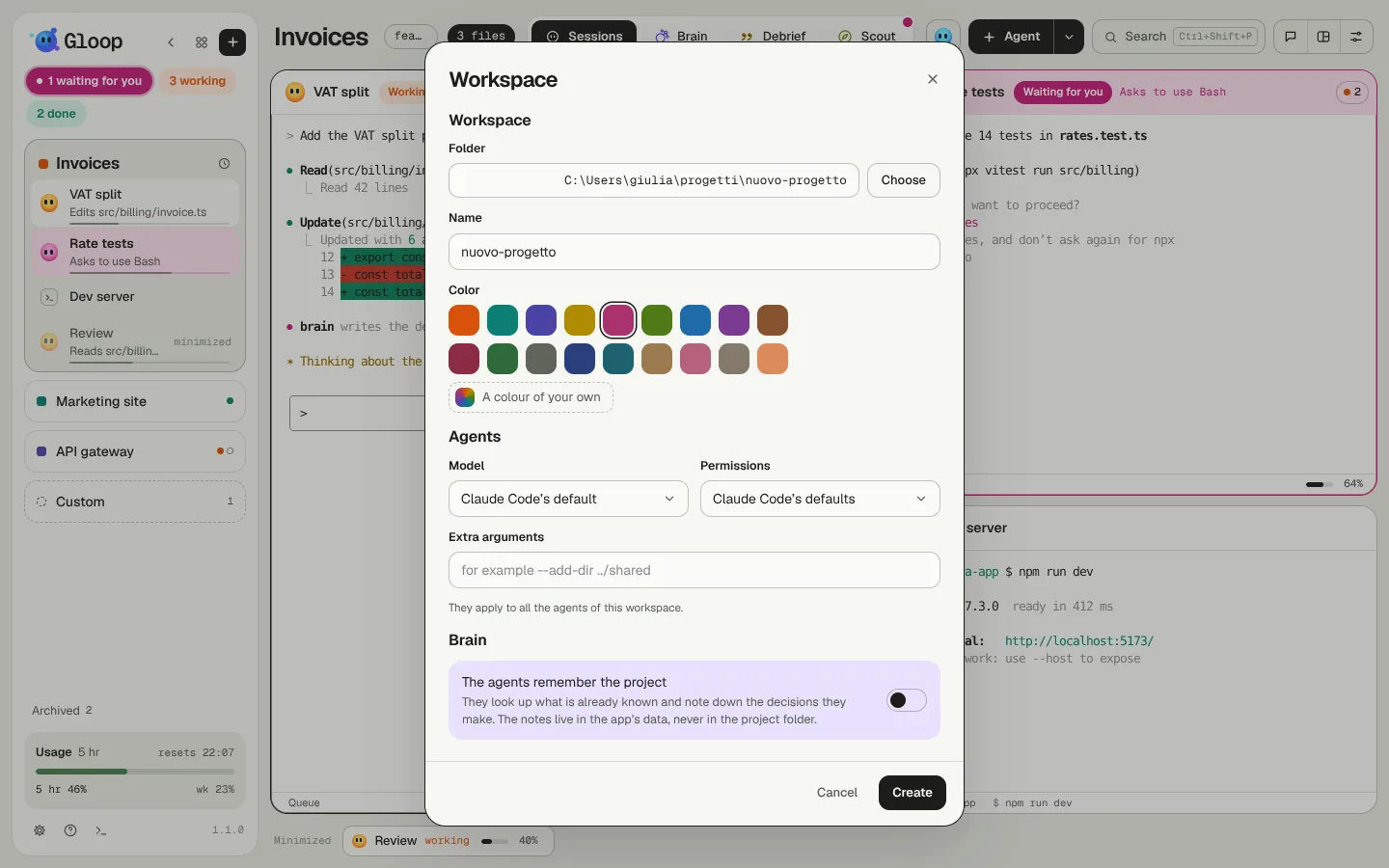
With the + at the top of the column (or from the palette) the Workspace window opens:
- choose the project's folder;
- the name comes from the folder, change it if you like;
- choose a colour (or one of your own, with A colour of your own): it marks the workspace in the column, in Control and in the notch;
- below, you can already decide the agents' model and permissions and turn on the Brain.
Create opens the workspace and starts the first agent in the folder right away.
Workspace settings
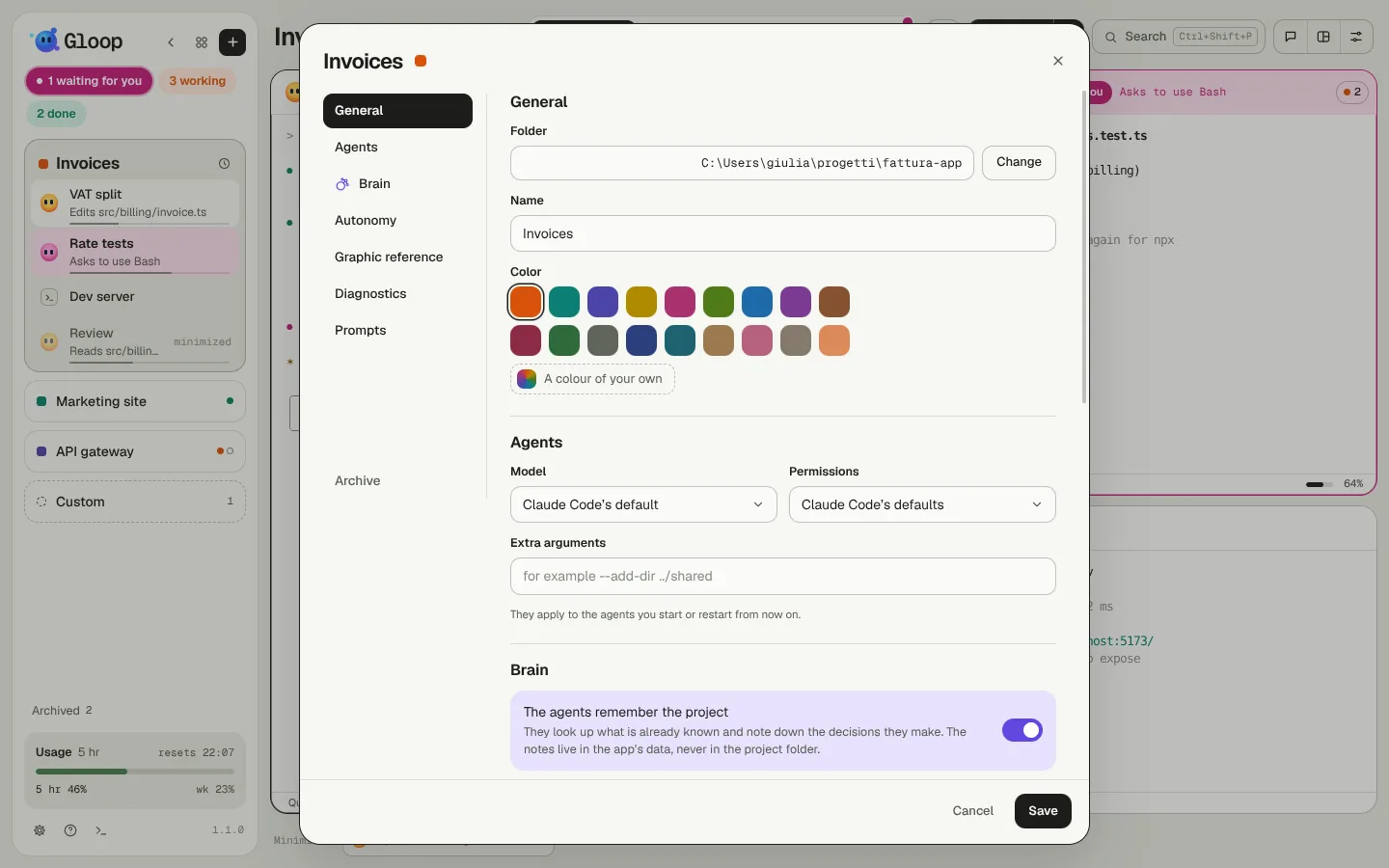
A click on the workspace's name in the bar (or on the gear on the right) opens its settings:
| Section | What you decide |
|---|---|
| General | Folder, name and colour. A new folder applies to the panes you open or restart from now on. |
| Agents | The model (Claude Code's own, or another one by name), the permissions (ask first, edit without asking, plan only, automatic…) and extra arguments to pass to Claude Code, for example --add-dir ../shared. They apply to the agents you start or restart from now on. |
| Brain | Whether the agents remember the project. See The Brain. |
| Autonomy | How far the agents go without you. See Answering the agents. |
| Graphic reference | A file (HTML, PDF, Word or image) that says how documents for people should look: the agents read it before making a page or a PDF. |
| Diagnostics | Check verifies the folder, Claude Code, curl, git and the link between agents and app. |
| Prompts | The workspace's saved prompts. See Saved prompts. |
Archive or close
At the bottom of the settings:
- Archive takes the workspace out of the column and stops its panes, but keeps everything: sessions, closed conversations, Brain notes, Scout requests. You open it again from Archived at the bottom of the column, and the panes pick up where they were.
- Close removes it for good: the saved sessions are lost, and its Scout requests go with it. You can choose whether to delete the Brain notes too.
When in doubt, archive.
Panes
Every pane is a terminal: an agent (Claude Code) or a shell. You open them with + Agent in the bar, with Ctrl+Shift+N (agent) and Ctrl+Shift+T (shell), or from the pane's menu (Agent on the right, Agent below, Shell on the right).
Side by side and moving
- A new pane splits the active one along its longer side.
- Drag the divider to change the proportions; double-click the divider to put it back at half and half. The button on the divider turns the split (side by side ↔ one above the other) without stopping anything.
- Drag a pane's header onto another pane to swap them.
- Layout, in the bar, rearranges them in one go: all side by side, one above the other, in a grid, or one large with the others at its side.
- Alt+← Alt+→ Alt+↑ Alt+↓ move the focus to the neighbouring pane.
Maximize, minimize, close
- Maximize (Ctrl+Shift+Z, or double-click the header): the pane takes all the room; again to go back to the split view.
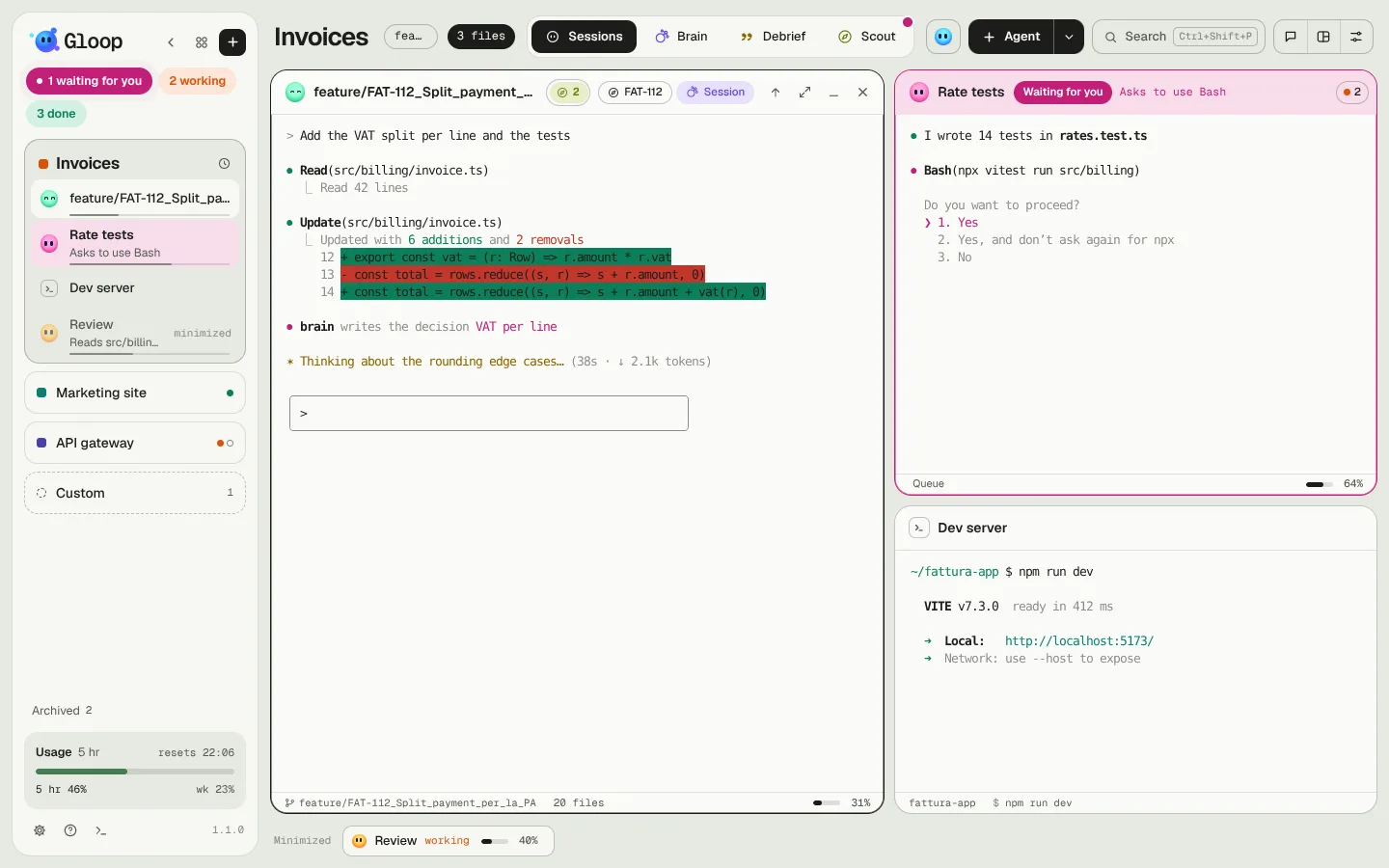
- Minimize (Ctrl+Shift+M): the pane leaves the view but keeps working, and goes into the Minimized strip at the bottom of the window, with name, state and context. One click puts it back exactly where it was.
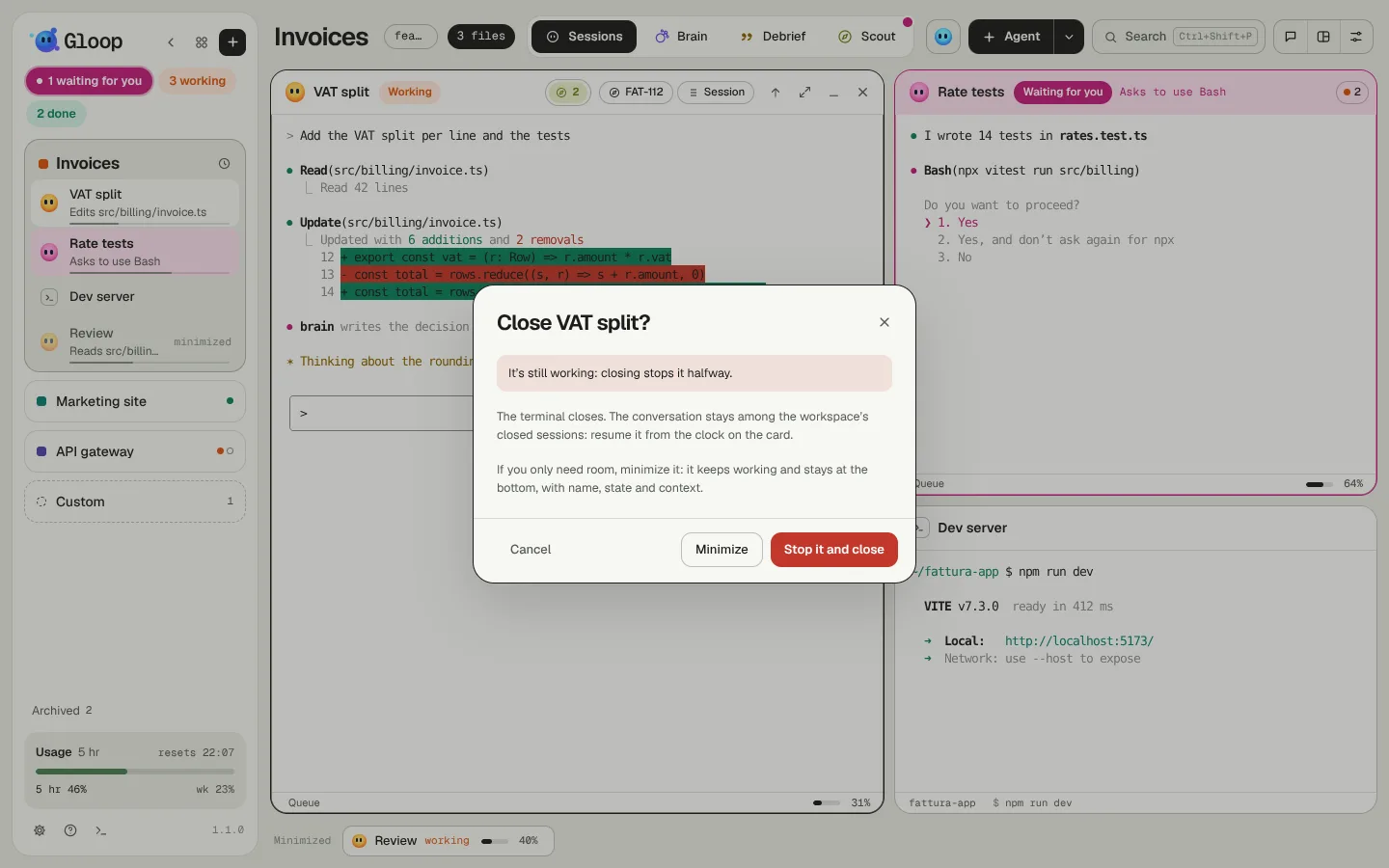
- Close (Ctrl+Shift+W) always asks for confirmation, and offers to minimize instead. If the agent is still working it tells you. The closed conversation isn't lost: you pick it up again from the clock on the workspace's card (see Picking work up again).
The pane's menu
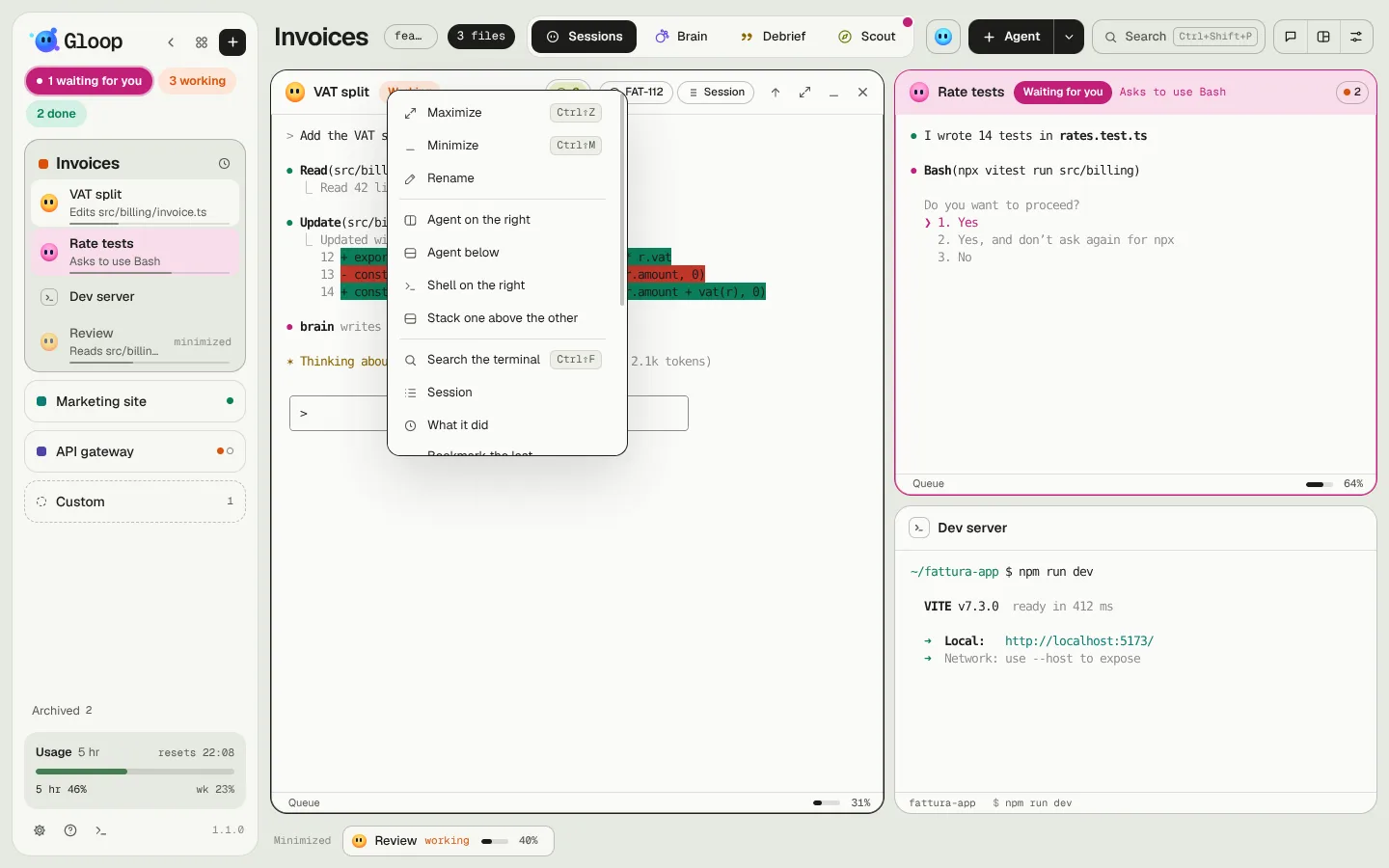
A right click on the header opens the menu: maximize, minimize, rename, new panes next to it, one above the other, search the terminal, the session, What it did, remote control, Move to Custom and more.
A pane's header
At the top: the mascot in the colour of the state, the title (it says what the agent is working on), the state in words when it's waiting for you or working, and a line on what it's asking or doing. Next to it, a capsule gathers everything that's asking you something (a permission, the queue, a radar warning, proposals for Scout): it turns magenta when something inside is waiting for you. Always in the same place there's Session, which opens the session panel.
At the bottom, a line of facts: where it works (the branch, or the folder), the changed files, the Gloop plan it comes from, remote control, the preview, and on the right the context used.
In the terminal
Gloop's terminals behave the way you expect, with a few helps:
- Ctrl+V pastes text; if there's an image on the clipboard, it goes to Claude (also one picked with Win+V on Windows).
- Ctrl+C with selected text copies; without a selection it stops as usual.
- In an agent, Shift+Enter and Alt+Enter start a new line without sending.
- Ctrl+Alt+= and Ctrl+Alt+- make the panes' font bigger and smaller, Ctrl+Alt+0 puts it back.
- Ctrl+Shift+F searches the terminal.
- Web addresses and file paths in the terminal open with a click (you choose the browser in Settings → Open with). With a right click on a link you choose where to open it (browser, a window of the app, editor, preview) or copy it.
Shells
A shell is a plain terminal in the workspace's folder. It can have a start command (for example npm run dev), which you see and change in the line at the bottom of the pane: when it restarts, the shell runs it again.
The localhost preview
When a terminal prints an address on this computer, like http://localhost:5173, Gloop puts it as a chip in the pane's header and in the palette: one click opens it in a preview window inside the app. There you can only browse between local addresses; a link to the outside opens in the browser.
Saved prompts
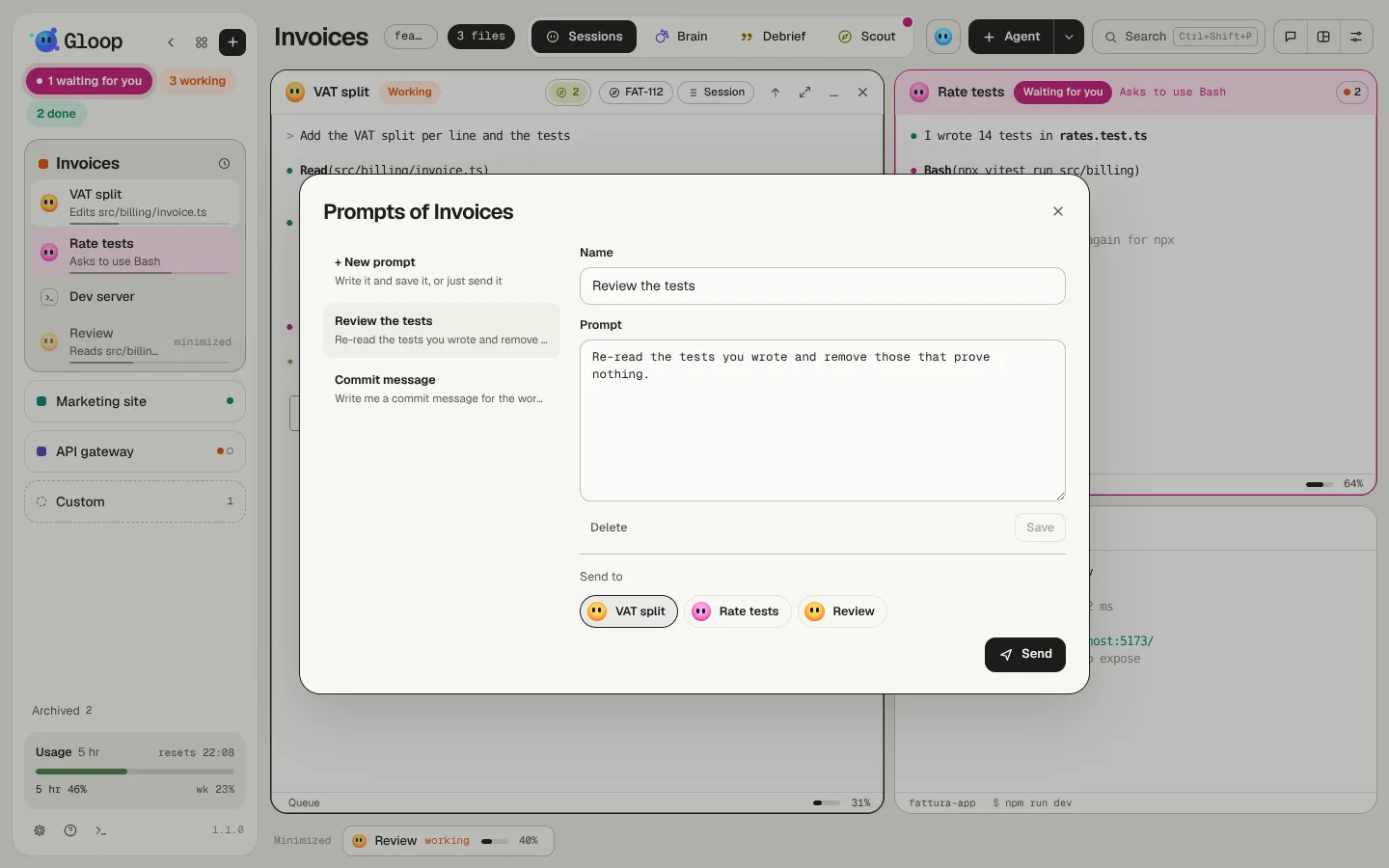
The things you often write to the agents ("re-read the tests and remove those that prove nothing", "write the commit message") save them as prompts: from the bar (the prompts icon) or the palette you pick the prompt and send it to one or more agents in one click. An agent that's working gets it in its queue.
The Custom space
Custom is a special space, always at the bottom of the column, where every pane has its own folder. It's for keeping an eye on agents from different projects together, or for working on the fly in a folder that doesn't deserve a workspace.
- Move to Custom (pane's menu or palette) brings an agent there without stopping it. Gloop remembers where it comes from: Take back to… sends it home.
- Agent in a folder (from the arrow next to Agent) opens an agent in any folder, without making a workspace of it.
- In Custom every pane shows its folder and its changed files. There's no Brain, no worktree, no try in parallel and no search in the folder's sessions, because the folders are many.
Remote control
Claude Code has a remote control to follow and answer a session from claude.ai or your phone. In Gloop you turn it on from the pane's menu: Gloop writes the command for you (in the queue, if the agent is working) and, as soon as the session is connected, the Remote chip appears in the header, which opens it on claude.ai. It stops with the process.