Memory
The Brain
A project's notebook, which the agents read before working and update while they work: how to turn it on, the kinds of notes, how to read it, how it takes care of itself and how it knows which branch a note was born on.
Every conversation with an agent starts from scratch: what it understood yesterday, today it no longer knows. The Brain is the project's memory. It's a notebook of Markdown notes, one per thing worth remembering: the decisions taken and their why, how the pieces of the code are made, the team's rules, the traps. The agents search it before doing something non-trivial and write in it when they take a decision or discover something that can't be read from the code.
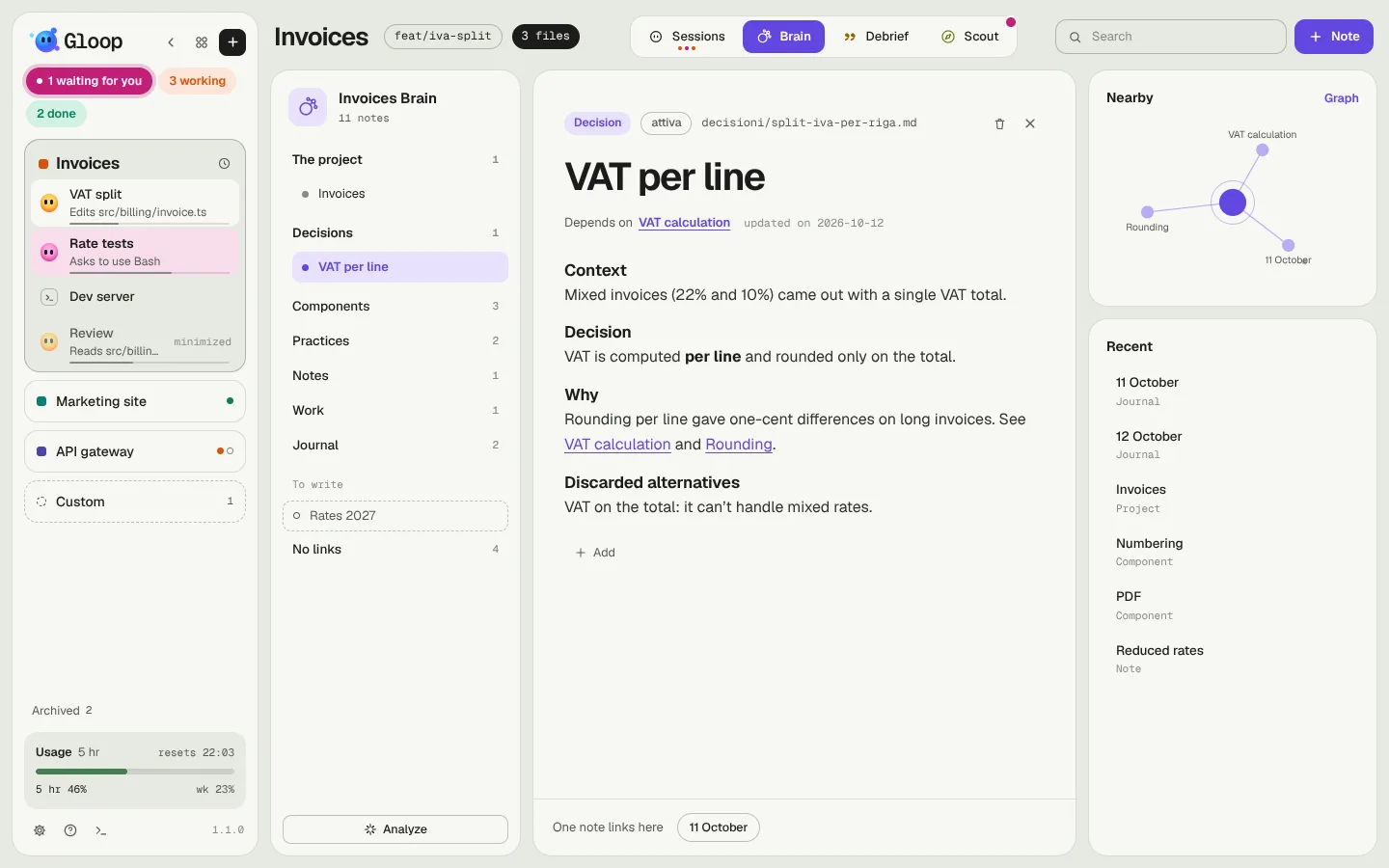
The notes live in the app's data, on your computer: never in the project's folder, never on a server.
Turning it on
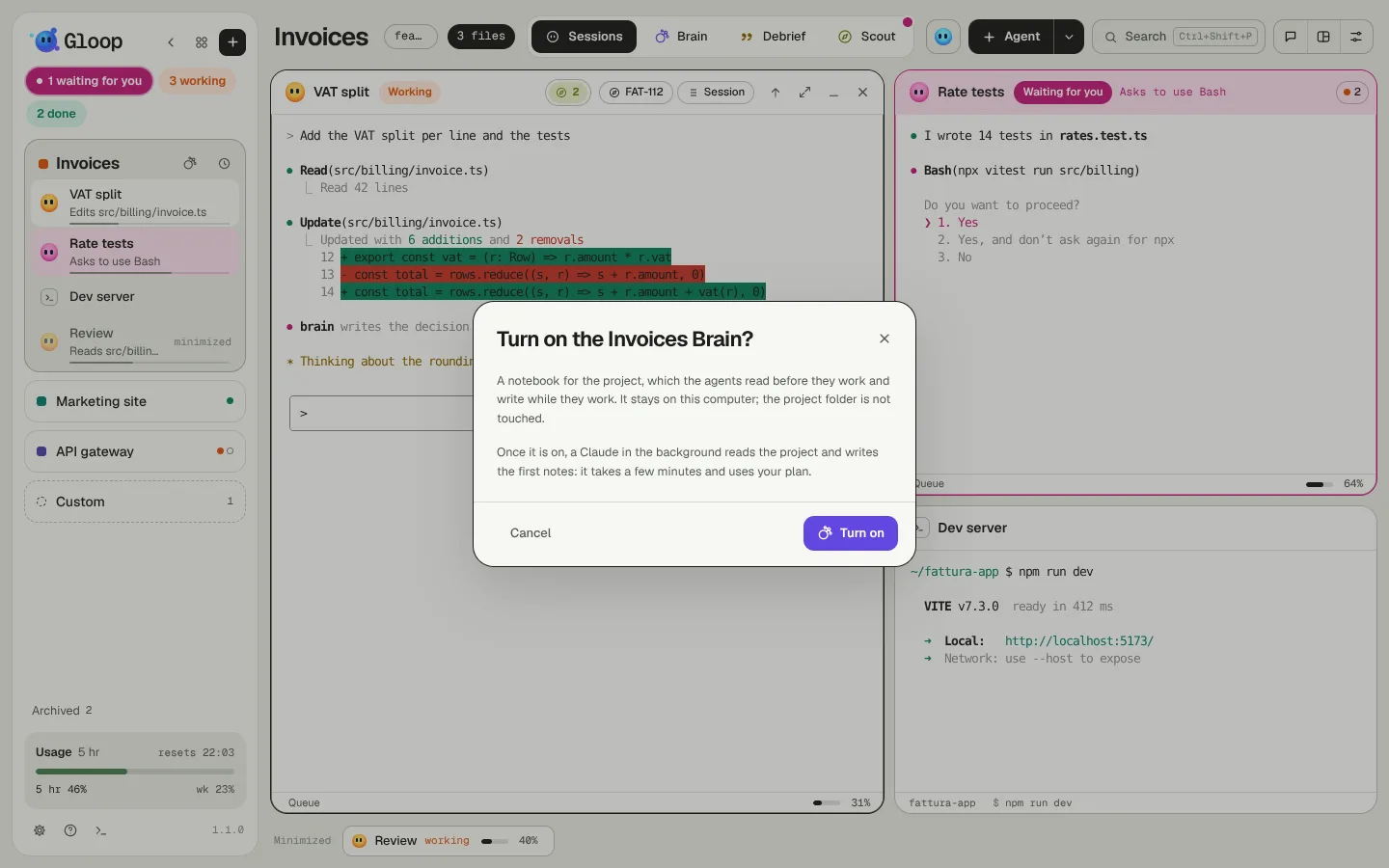
The Brain is turned on per workspace: in the window that creates the workspace, in its settings (Brain → The agents remember the project), or from the Brain tab, which, when off, explains what it is and offers Turn on.
When you turn it on, Gloop offers to analyze the project: a Claude in the background reads the code and writes the first notes (the project, the main components, the practices, the decisions that can be read from the history, the work in progress). It takes a few minutes and uses your plan. You can redo it whenever you like with Analyze, at the bottom of the index.
The agents started from that moment have the Brain: they reach it with their tools (search, read, write, append, link) and a rule that tells them to search first and to write down the why of things. Your own MCP servers stay as they are.
Kinds of notes
| Kind | What it tells | Its sections |
|---|---|---|
| Project | What the project is and what to know straight away. Only one. | What it is, How it's made, Know first |
| Decision | A choice, with the why and what was discarded. Active, proposed or superseded. | The problem, The choice, Why, Consequences |
| Component | A module or an area of the code, with its files. | What it does, How it's made, Rules not to break, Traps |
| Practice | A working rule of the team. | The rule, Why, How it applies |
| Note | Something to keep in mind, in short. | In short |
| Work | A long piece of work, and how far it got. | Goal, Where it stands, What's missing |
| Journal | One note per day: done, decided, left open. | Done, Decided, Left open |
Notes link to each other with [[Note title]]. A link to a note that doesn't exist yet isn't an error: it ends up among the notes To write.
Reading and writing
The Brain tab has three columns:
- on the left the index by kind, with To write, Needs care and No links;
- in the middle the note, to read like a page. A click on a part makes it editable; typing
[[Gloop completes the title. It saves by itself; - on the right the Nearby notes (a small map of the note and its links) and the Recent ones.
At the top, Search the notes and Note to write a new one (choose the kind first, which gives the sections). Under every note, which notes quote it.
The Graph (from Nearby) shows every note as a globe to turn: drag to rotate, the wheel to get closer, a click on a point opens the note. By type colours the points by kind. It needs 3D graphics: on a computer without them (a remote desktop, for instance) Gloop says so and the index stays.
From the pane to the Brain
When an agent ends with a long answer (an explanation, an analysis) and hasn't already written in the Brain itself, the pane asks you "Long answer. Shall I keep it in the Brain?". A draft opens: the title, the kind and the text rewritten as a note by a small model, with links to the notes that exist. Change it as you like, and nothing is written without Save. Saving also adds a line to the day's journal.
The Debrief is saved in the Brain too, as a work note, and Scout decisions can end up there.
The Brain takes care of itself
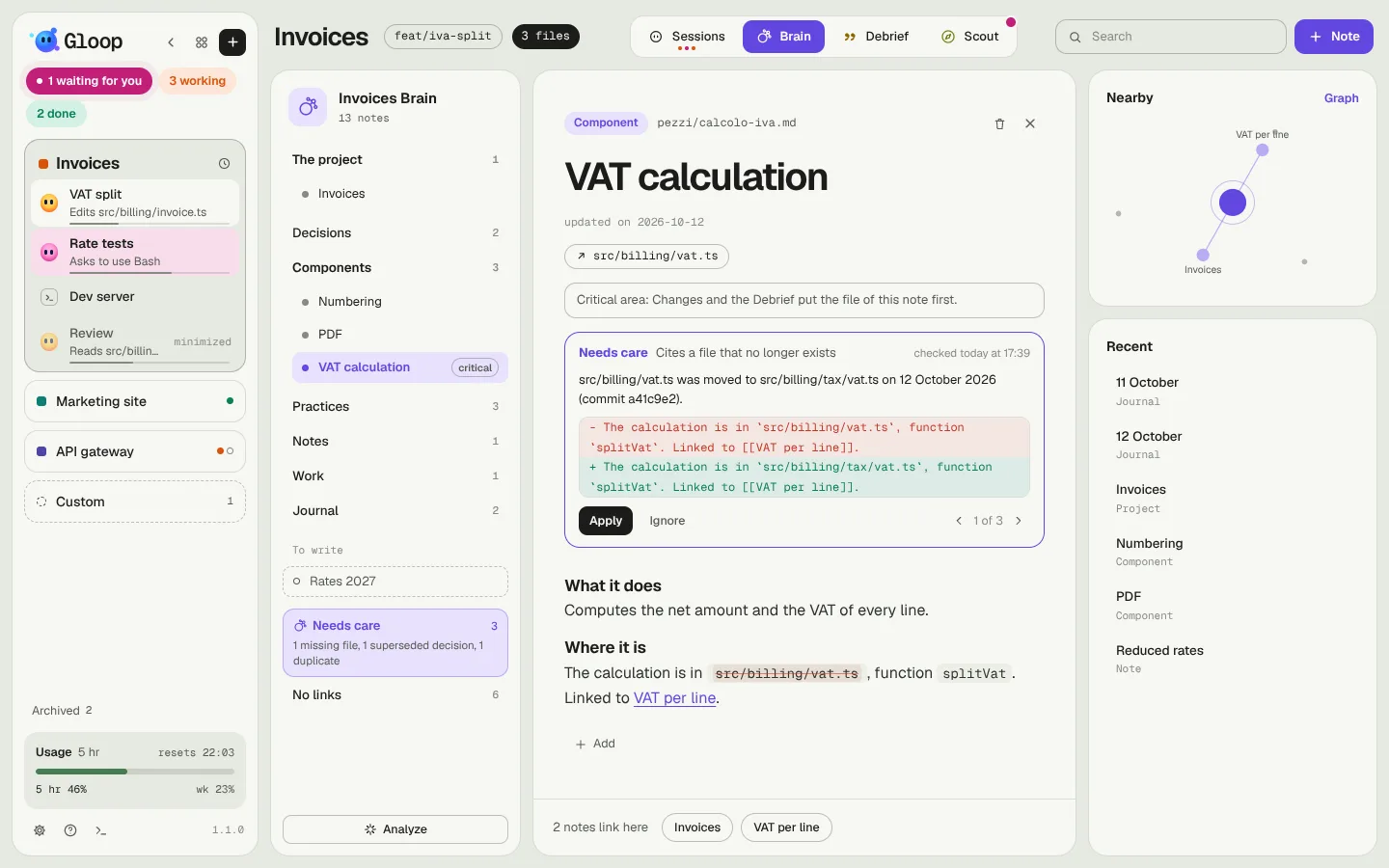
A notebook gets dirty: quoted files that no longer exist, wrong links, duplicate notes, decisions superseded by a newer one. Once a day, when you open the workspace, Gloop looks for these problems and has a small model confirm them, writing the correction and the why.
The proposals show under Needs care in the index. Opening the note, the card is at the top: what's wrong, when it was checked, the why, the before and the after. Apply corrects it (and writes it in the journal), Ignore leaves it: it comes back only if the note changes and the problem remains. Nothing changes without your Apply.
Which branch a note was born on
The code changes from branch to branch, the Brain is just one. That's why every note written by an agent remembers the branch it was born on, the commit and the files it quoted. Under the title, a line says where it was born and whether that work has already got into the main branch: in progress, merged, branch gone, or don't know when git can't say for sure.
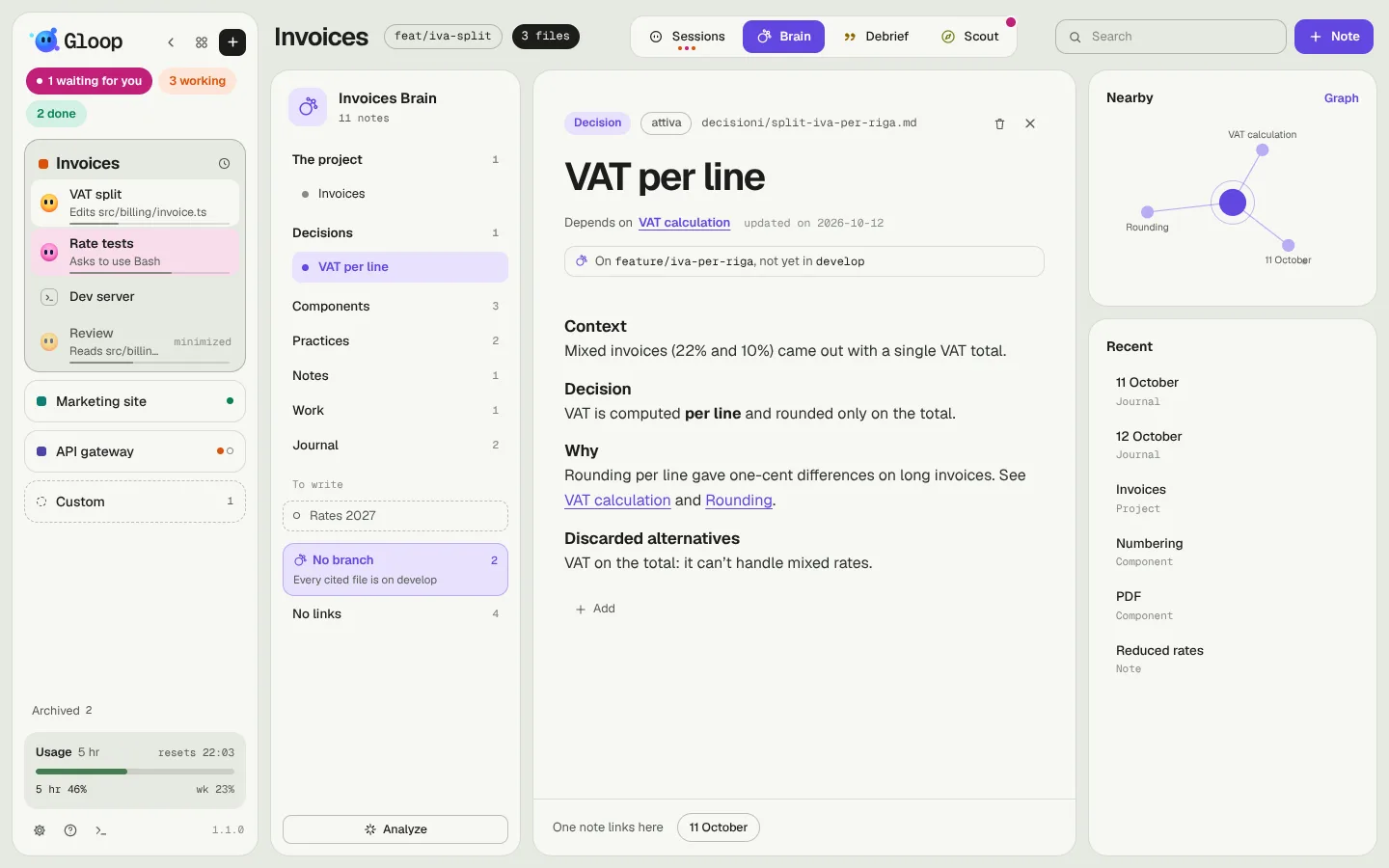
Gloop recognises work that got in however you close your pull requests: merge, rebase or squash. To know, it downloads the repository's main branch only, every now and then (never a password, never anything going out); you turn it off in Settings → App → Brain and git.
The agents see it too: reading a note born on another branch and not yet merged, they know that what it tells may not be in their code, and check before counting on it.
Critical areas
A note can mark some paths as a critical area (billing, migrations, authentication). Any change there ends up among the files to look at in Changes and in the Debrief. The easiest way to mark one is Mark as critical area inside Changes; in the Brain's index these notes have the critical tag.
The notes' language
The agents write notes in the app's language. Notes already written are never translated by themselves: Translate, at the bottom of the index, passes them one by one to a small model, keeps the files where they are and in the end updates the links with the new titles.
Turning it off
Turning the Brain off in the workspace settings keeps the notes (turn it on again and they're back), unless you tick Delete the notes too. When you close a workspace, the confirmation asks you whether to delete them.