Agents and workspaces
Agents and their states
How Gloop knows what each agent is doing, how you write to it, answer it and queue messages, how you find a message again and how you pick work up after a break.
An agent in Gloop is Claude Code running in a pane. Gloop starts it by typing the command in the pane's shell: when Claude exits, the terminal stays, and you can start it again or use it as a plain shell.
The states
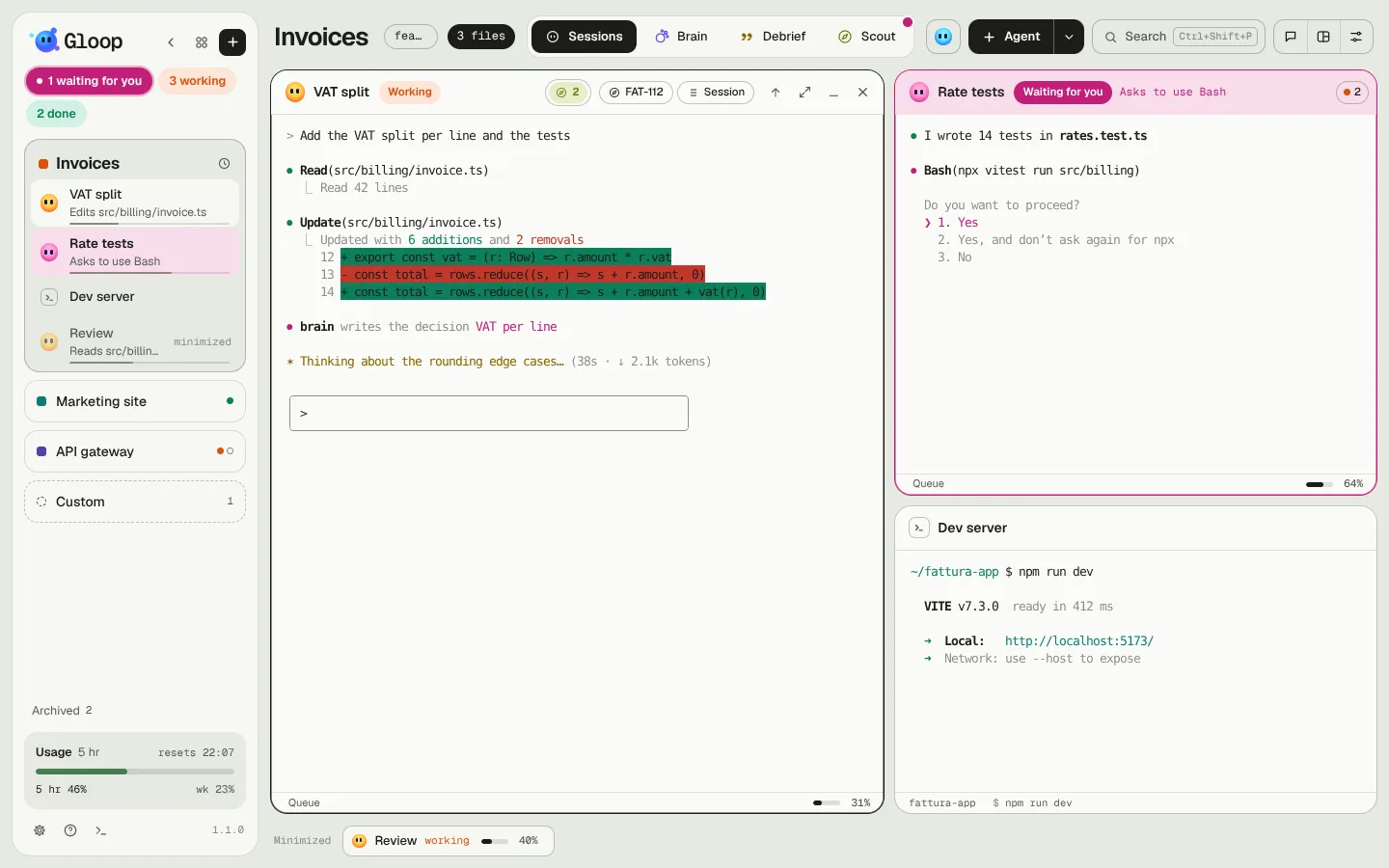
Gloop knows at every moment what each agent is doing, because Claude Code itself tells it (with its hooks, without touching your project). There are four states, plus the one of an agent that isn't running:
| State | Colour | When |
|---|---|---|
| Working | Orange | From your message until the turn ends: reading, writing, running commands. |
| Waiting for you | Magenta | It has a question for you, a plan to approve, or asks permission to do something. |
| Done | Mint | The turn is over. It stays mint until you write to it again. |
| Idle | Blue | Just opened, before the first message, or with the session ended. |
| Closed | Grey | The terminal isn't running: the agent can be resumed, or it was closed. |
You see the state everywhere: in the mascot of the pane and of the column, in the pills at the top of the column, in Control, in the notch, on the app icon.
Writing to an agent
The direct way is its terminal: click the pane and type. On top of that:
- from Control, with the pencil on the agent's row or card, without opening the pane;
- from the palette (Ctrl+Shift+P), searching for the agent;
- from the notch, from whatever program you're in;
- by sending a saved prompt.
In messages written from Gloop (Control, notch) you can attach images: paste them with Ctrl+V, drag them or pick them.
The queue
If the agent is working, what you write to it from Gloop doesn't interrupt it: it goes into the queue. While it works, Queue appears at the bottom of the pane; queued messages show in the header's capsule, with their number. Gloop sends one per turn, as soon as the agent ends the current one, so every message gets its own answer.
Questions, plans and permissions
When an agent is waiting for you, you can answer wherever suits you best:
- A question (with its options): in the session panel, on the magenta card in Control, in the notch, or in the terminal as always.
- A plan to approve: you read it in the session panel and approve it, or ask for changes by writing what to change.
- A permission ("wants to run a command"): Yes or No from the card, the notch or the terminal. If several agents ask for exactly the same permission, you answer them all at once: see Answering the agents.
Gloop never chooses for you unless you asked it to: see Autonomy.
Finding a message again
Claude Code in a pane fills the whole terminal and scrolls the conversation by itself. To find things again:
- Ctrl+Shift+U brings the terminal back to your last message to that agent and makes it flash for a moment. If it's no longer on screen, it opens the conversation on it.
- Ctrl+Shift+B puts a bookmark on Claude's last answer. Bookmarks show in the header's capsule.
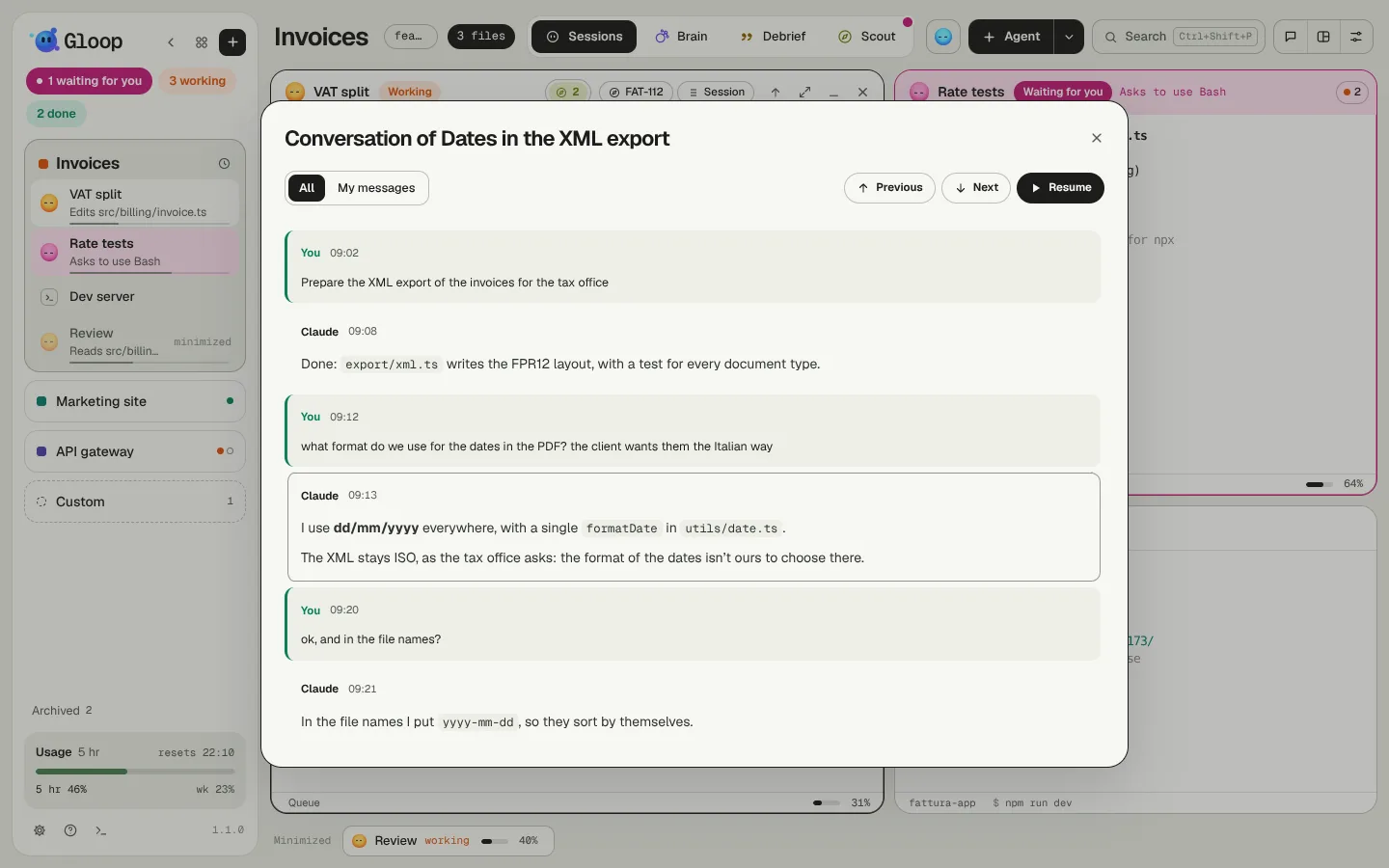
- The Conversation view (from the pane's menu) shows only your messages and Claude's answers, without tools or thinking, and updates by itself. You can filter Everything, My messages or Bookmarks, copy a message, flag it, and step from one to the other with Ctrl+Shift+↑ and Ctrl+Shift+↓.
Searching all sessions
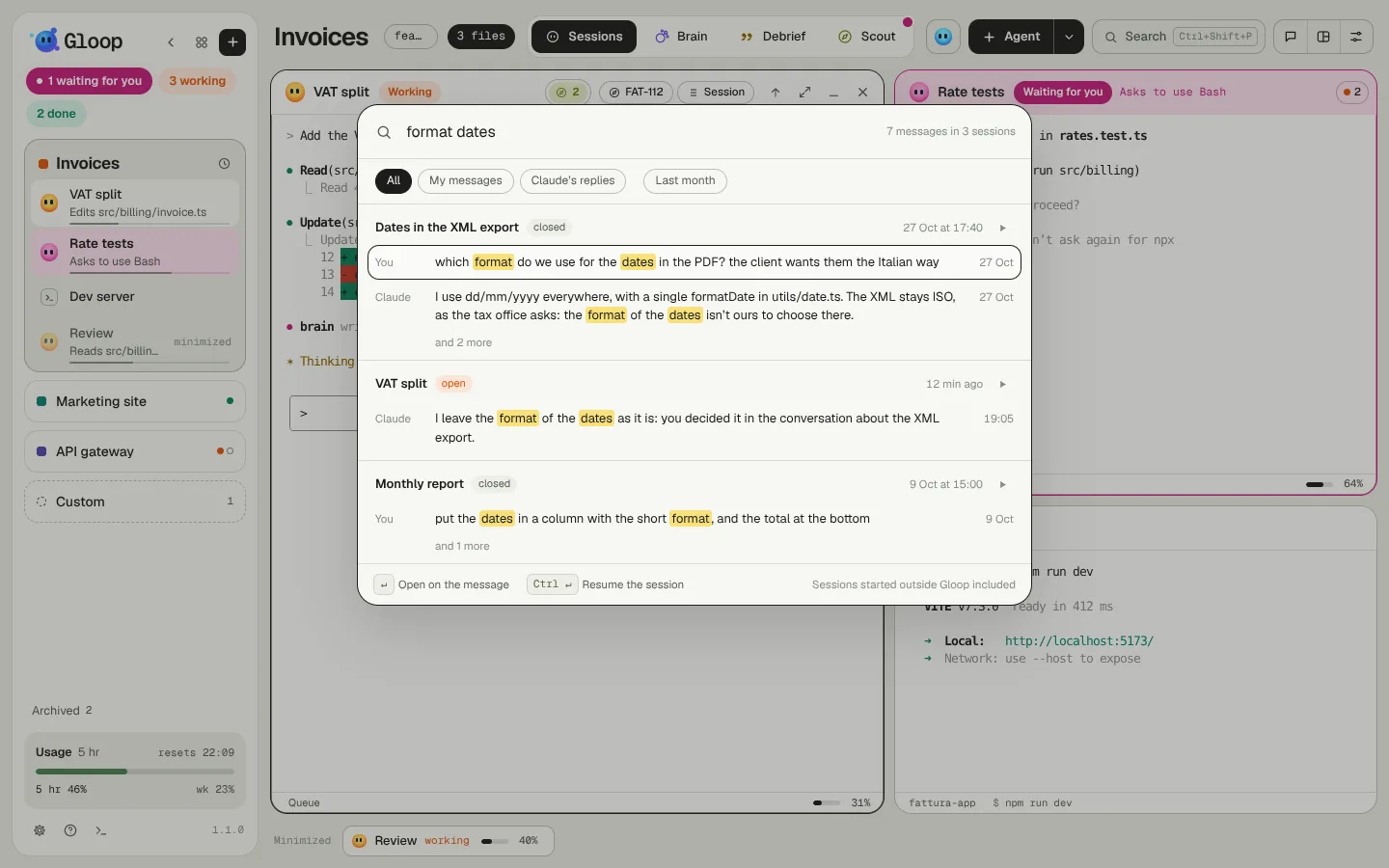
Ctrl+Shift+S searches the text of every conversation in the workspace's folder: the open ones, the closed ones and even those started outside Gloop. It finds the messages that have all the words, ignoring case and accents; you can narrow it to your messages, Claude's answers or the last month.
Enter opens the conversation on that message; Ctrl+Enter resumes the session straight away in a pane.
Picking work up again
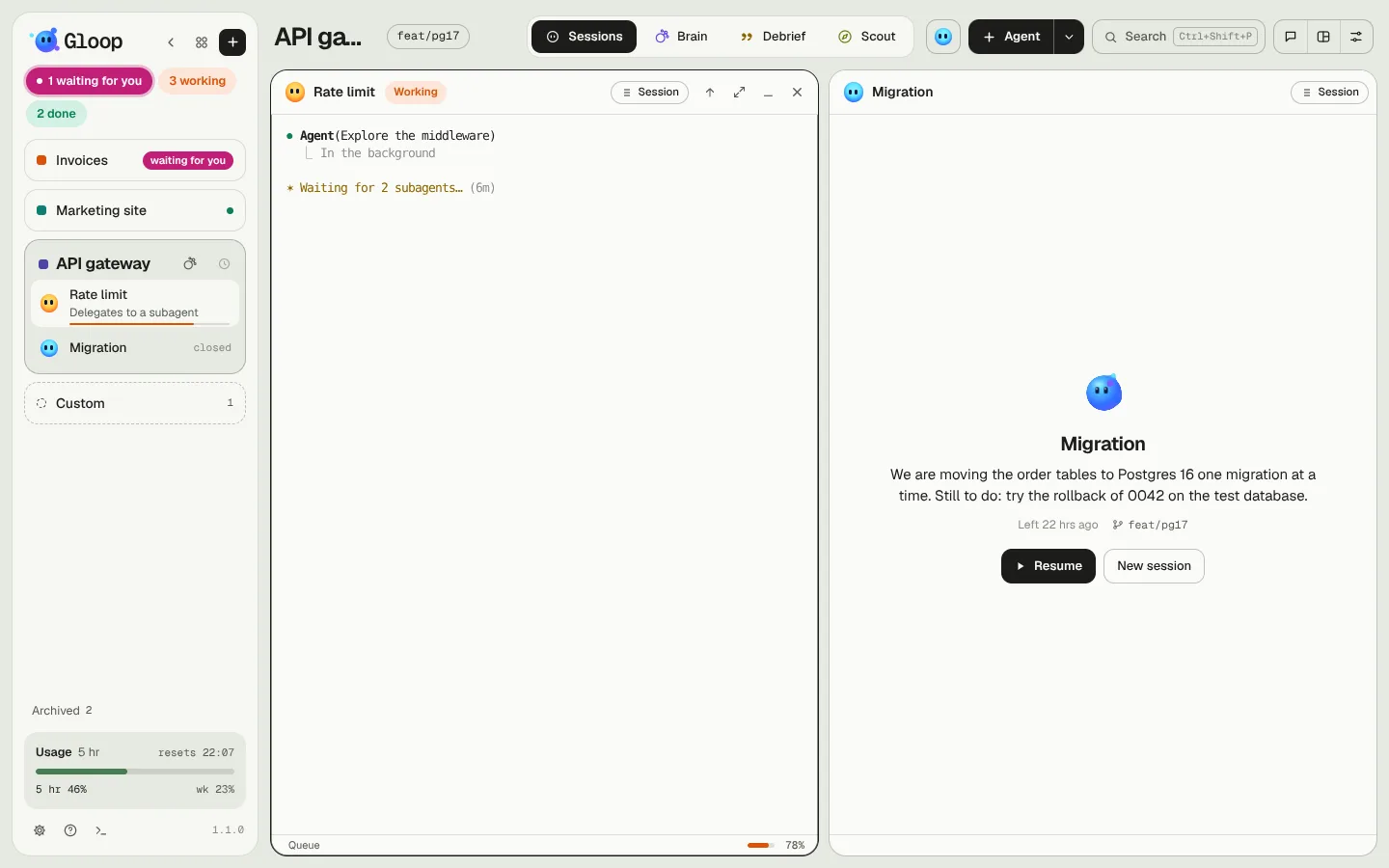
When you close Gloop the agents stop, but the conversations stay: every stopped pane shows Resume, which starts Claude Code again on the same session. Next to it there's New session, to start from scratch in the same pane.
Above the buttons, a two-line recap: what was being done, how far it got and the next step. A small model (Haiku) writes it once by reading the last messages, and rewrites it only when the conversation moves on.
At start
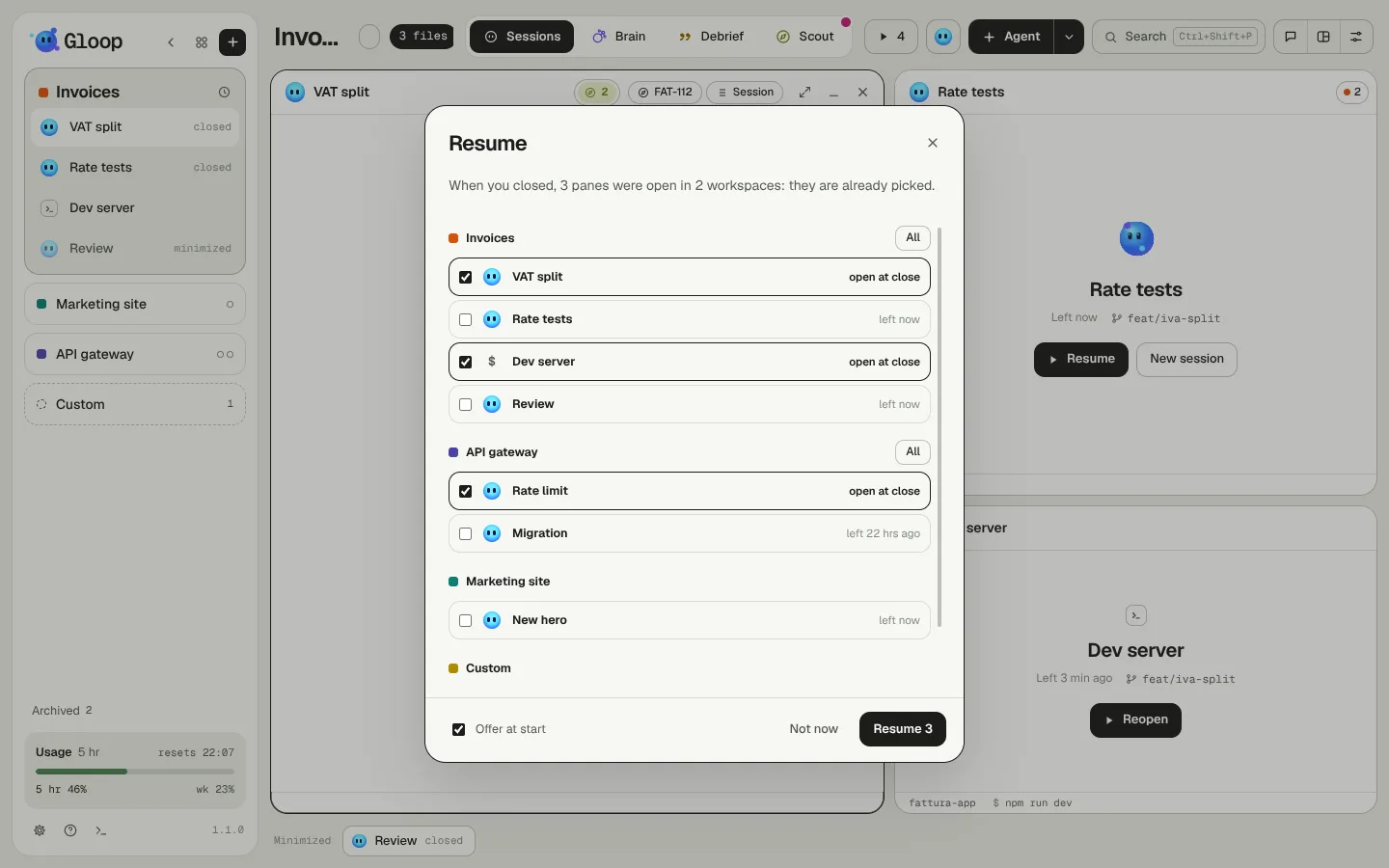
At the first start after closing, Gloop offers the Resume window: every stopped pane of every workspace, grouped, with those that were open when you closed already chosen. Resume N starts them one after the other. The same window opens from the Resume N button in the bar and from the palette ("Resume panes"); the Offer at start box turns it off.
Closed sessions
Every workspace remembers its last five closed conversations: the clock on the workspace's card lists them, each with its recap, and Resume opens it again in a new pane. From the same menu, All sessions shows every Claude Code conversation in the folder, even those started from a terminal outside Gloop.
When the context fills up
Every agent has a context, the memory of the conversation, and the percentage used shows at the bottom of the pane. When an agent stops with the context nearly full, the pane offers to continue in a new session with a short handoff, instead of compacting the conversation: the agent writes where it got to and the next step, and the new one starts from there (with the Brain on, the handoff ends up there too). You choose the threshold in Settings → Agents → Session switch.
When it stops for a limit
If an agent stops because you reached a limit of your plan (the 5 hours or the week), the turn ends and the pane says so, showing the time the limit resets. Next to it there's the Resume on its own switch: when on, a minute after the reset Gloop tells the agent to carry on. It works only with the app open; a message of yours in the meantime cancels it. More in Usage, limits and costs.