Agents and workspaces
The Control view
Every agent of every workspace on one page, in groups or as a map: answering, writing, opening an agent large and moving to the next one without losing the thread.
Control shows the agents of every workspace together. It's another way of looking at the Sessions tab: when you have several projects open, this is where you see who needs you.
You enter it with Ctrl+Shift+O or the icon with all the drops at the top of the column; you leave the same way, or by choosing a workspace.
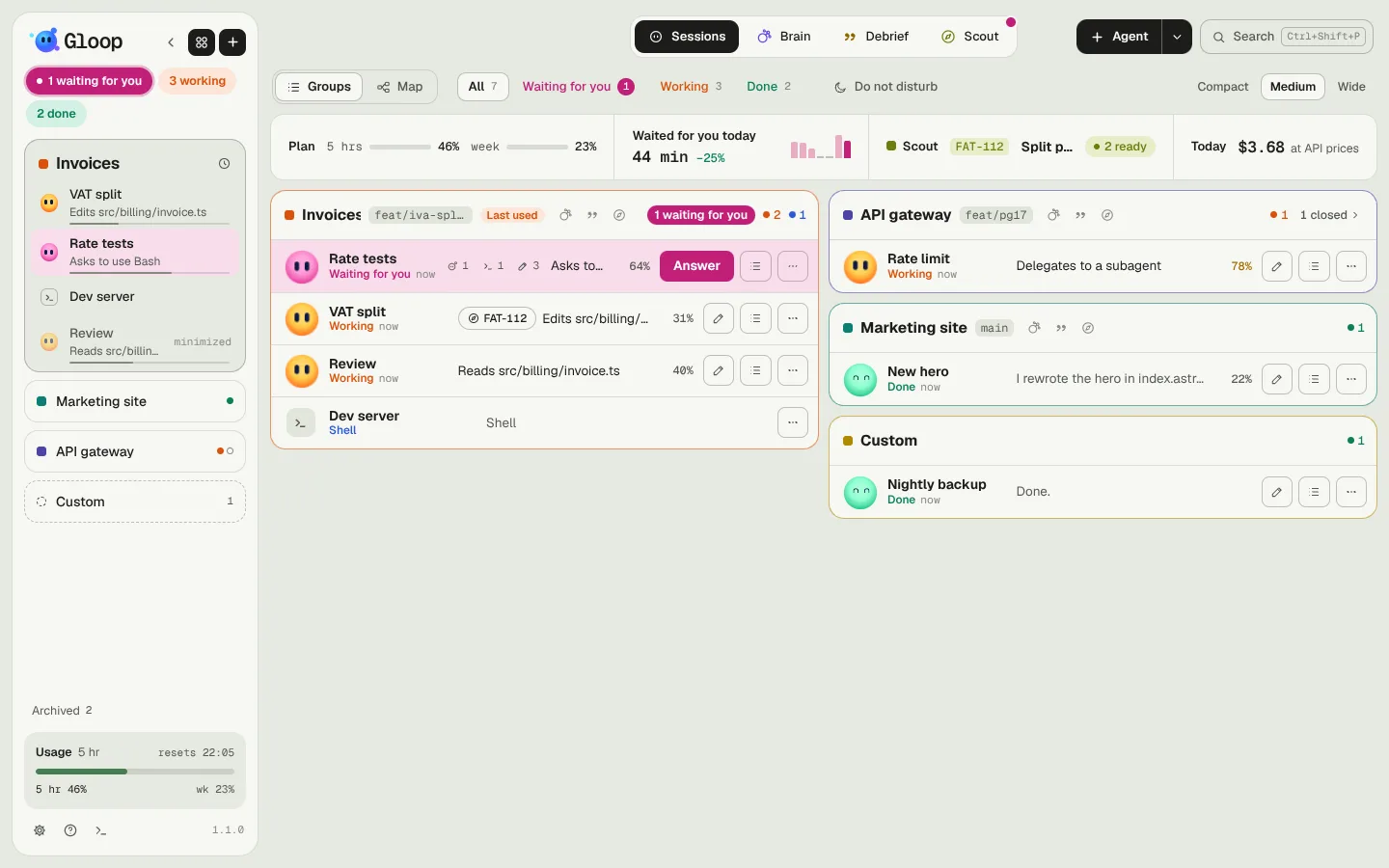
At the top
Under the bar, a strip sums up the day:
- Plan: how much of the 5 hours and the week you've used;
- Waited for you today: for how many minutes at least one agent waited for you. A click opens Your week;
- the Scout request you're working on, with the answers ready;
- Today: what today's sessions would cost at API prices.
And a row of controls: Groups or Map, the filters (All, Waiting for you, Working, Done), Do not disturb and, in Groups, the density (Compact, Medium, Wide).
Groups
Each workspace is a box, each agent a row: mascot, title and state, what it's doing, the last minutes of activity, the context and three buttons.
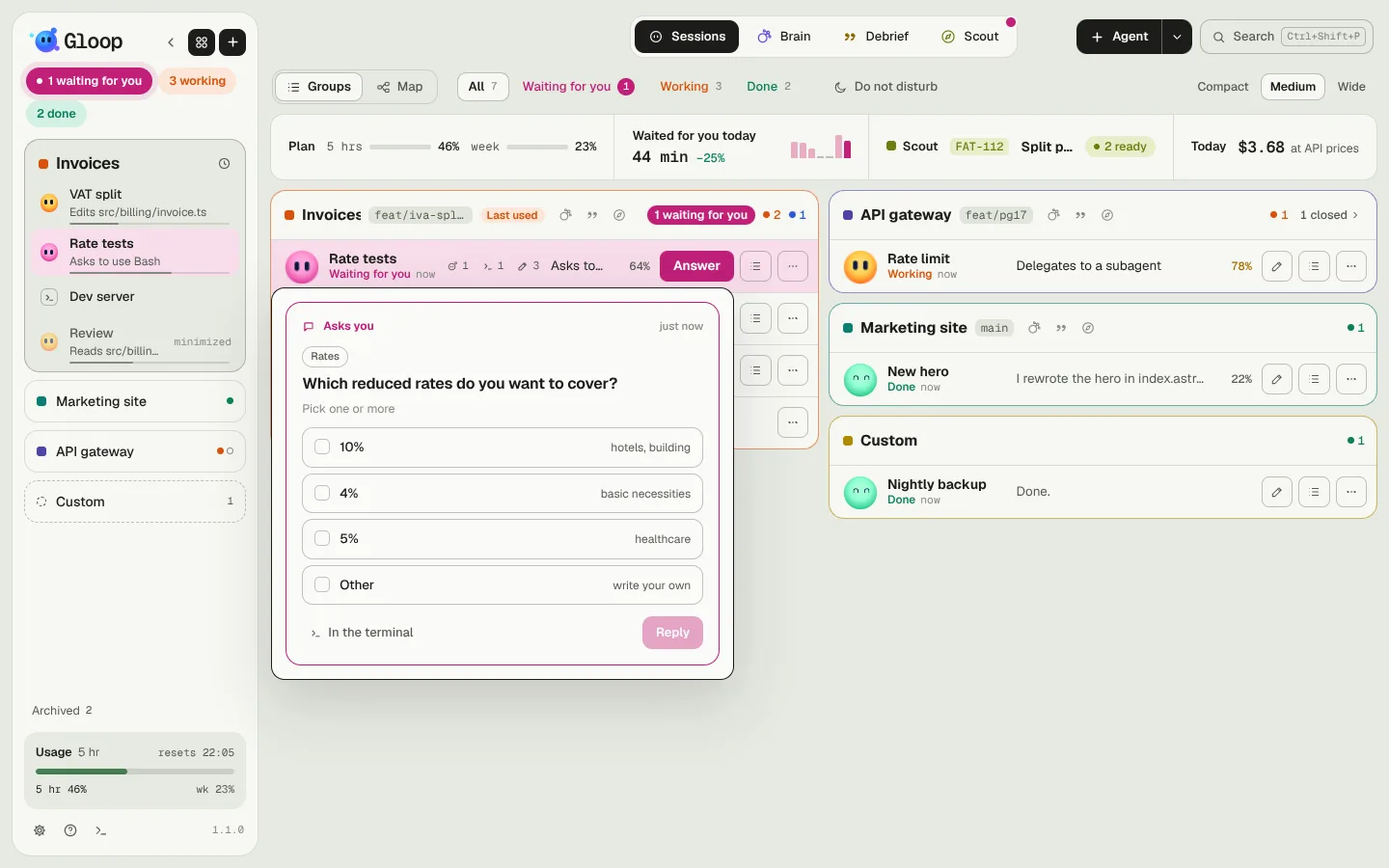
- Whoever is waiting for you has a magenta row and the Reply button: the question, plan or permission opens right there, without leaving the page.
- The others have the pencil: write to the agent (queued if it's working), with images too.
- Quick summary says what you asked it, what it's doing or has done, and what it has shown.
- More actions: open the pane, copy the last message, open the folder, rename, close.
Rows shrink by themselves until everything fits on one screen: with few agents they're large, with many they become dense.
The map
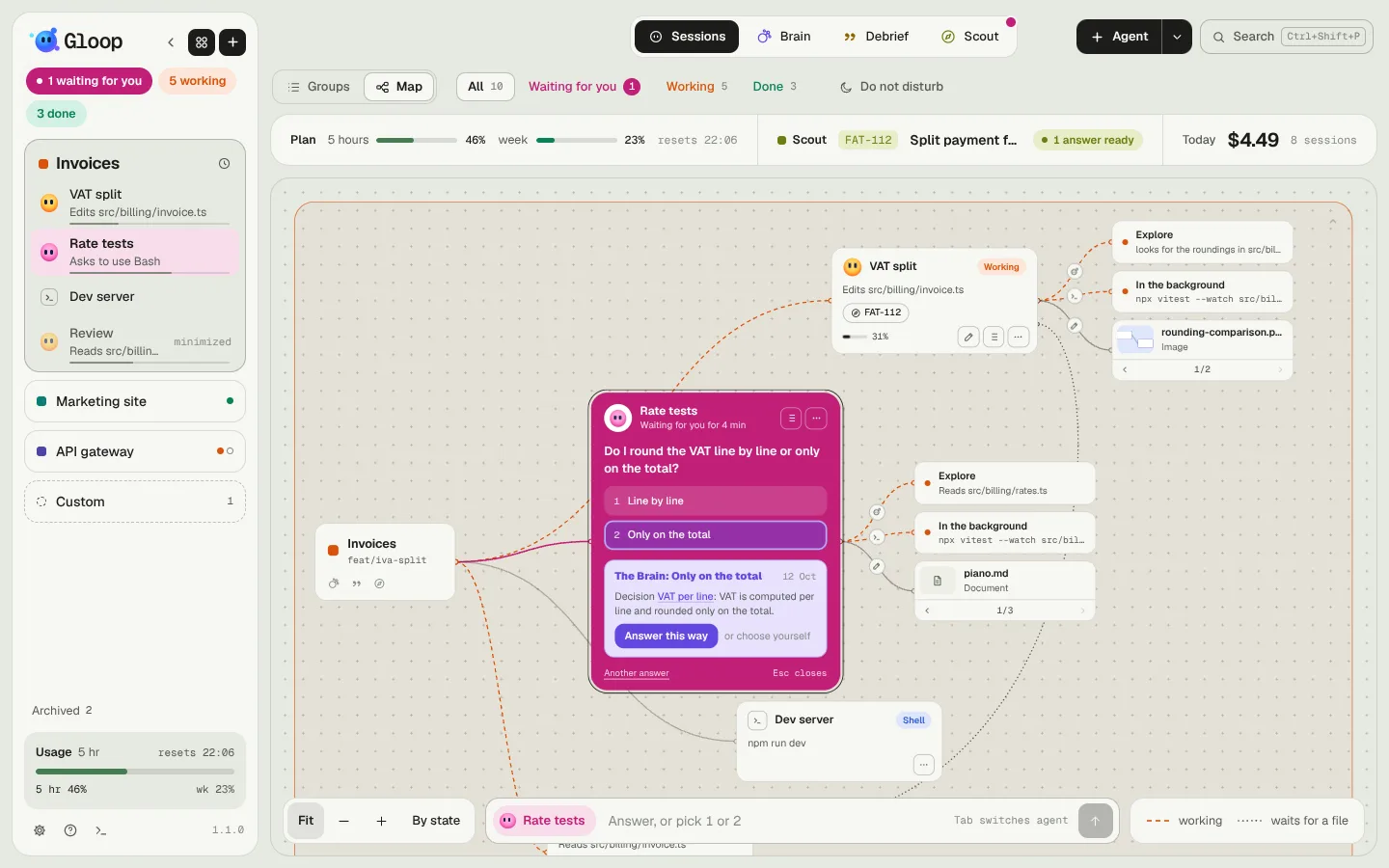
With Map each workspace becomes a box in its colour, with its agents hanging from it; next to each agent its subagents, background commands and the files it produced (the last one in view, arrows for the others). The lines take the colour of the state; a dotted line says that an agent is waiting for a file another one is editing (see Several agents in the same folder).
- Whoever is waiting for you with a simple question has the question open on its magenta card: one click on an answer, or its number on the keyboard.
- At the bottom, a box writes to the chosen agent: Tab moves to the next one, a number on its own picks an option.
- Wheel and dragging move the view, Ctrl + wheel zooms, Fit (or a double click on the background) brings everything back into view.
- A box folds into a single row with the arrow at its top right.
An agent, large
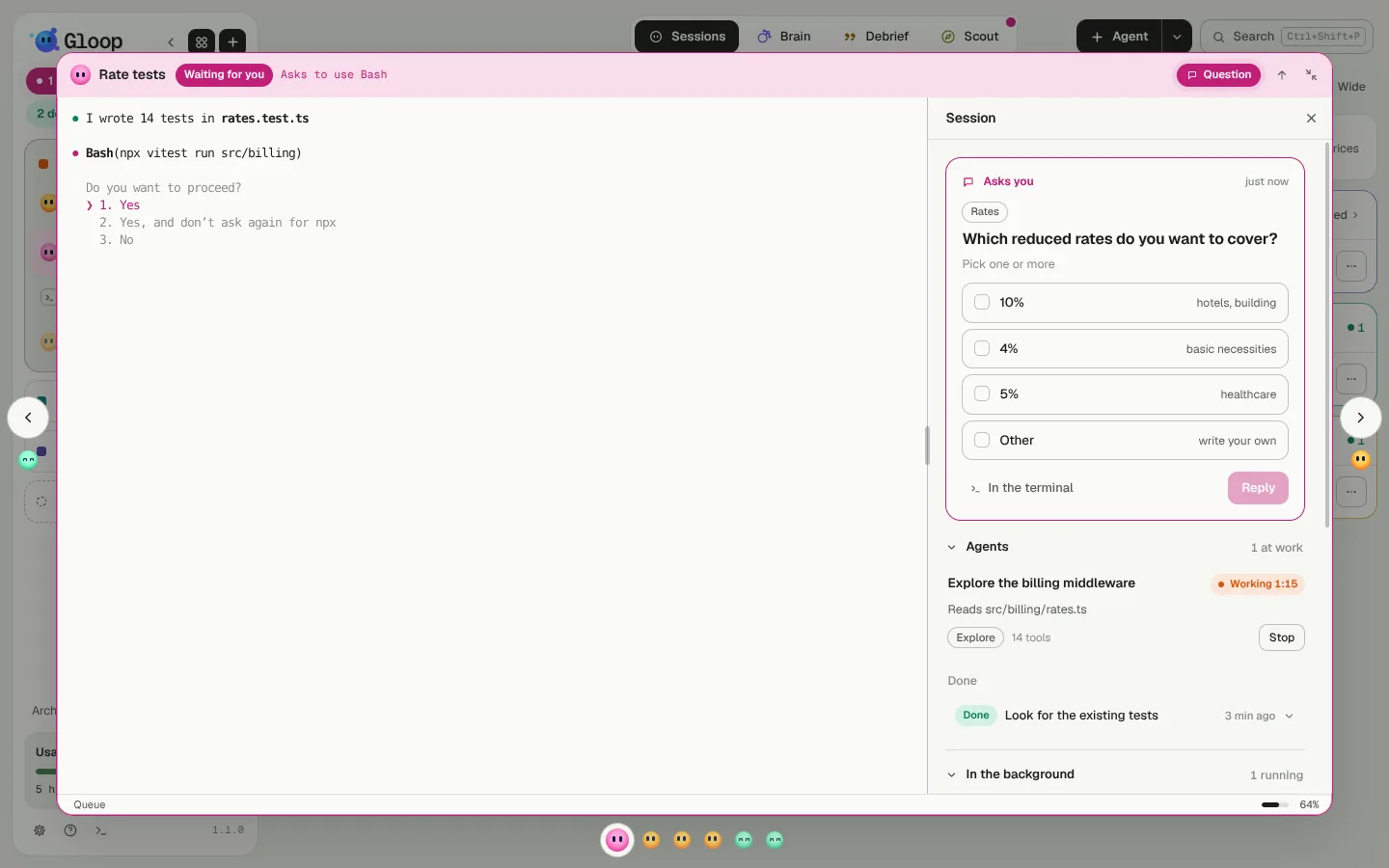
A click on a row or a card opens that pane large over Control: the real terminal and session panel. With the arrows at the sides, the row of mascots below, or Ctrl+Shift+→ and Ctrl+Shift+←, you move to the other active agents without going back. The veil behind it, or the shrink button, take you back to the page.
Who's waiting for you
Ctrl+Shift+A goes round the agents waiting for you, oldest first. In Control it brings its row or card into view; pressed again on the same agent, it opens it large. Everywhere, whoever starts waiting for you calls once: a magenta ring on its card.