Reference
Settings
The app's settings, page by page: look and language, terminal, agents, what to open files and links with, shortcuts, notch and the app's preferences.
The app's settings open with the gear at the bottom of the column, or with Ctrl+Shift+L. On the left the pages, on the right one page at a time; the window opens again on the last one you looked at. Reset, at the bottom, restores the starting values of the open page only.
The settings of a workspace (folder, model, permissions, Brain, autonomy…) are something else: they open from the workspace's name. See Workspaces and panes.
Look
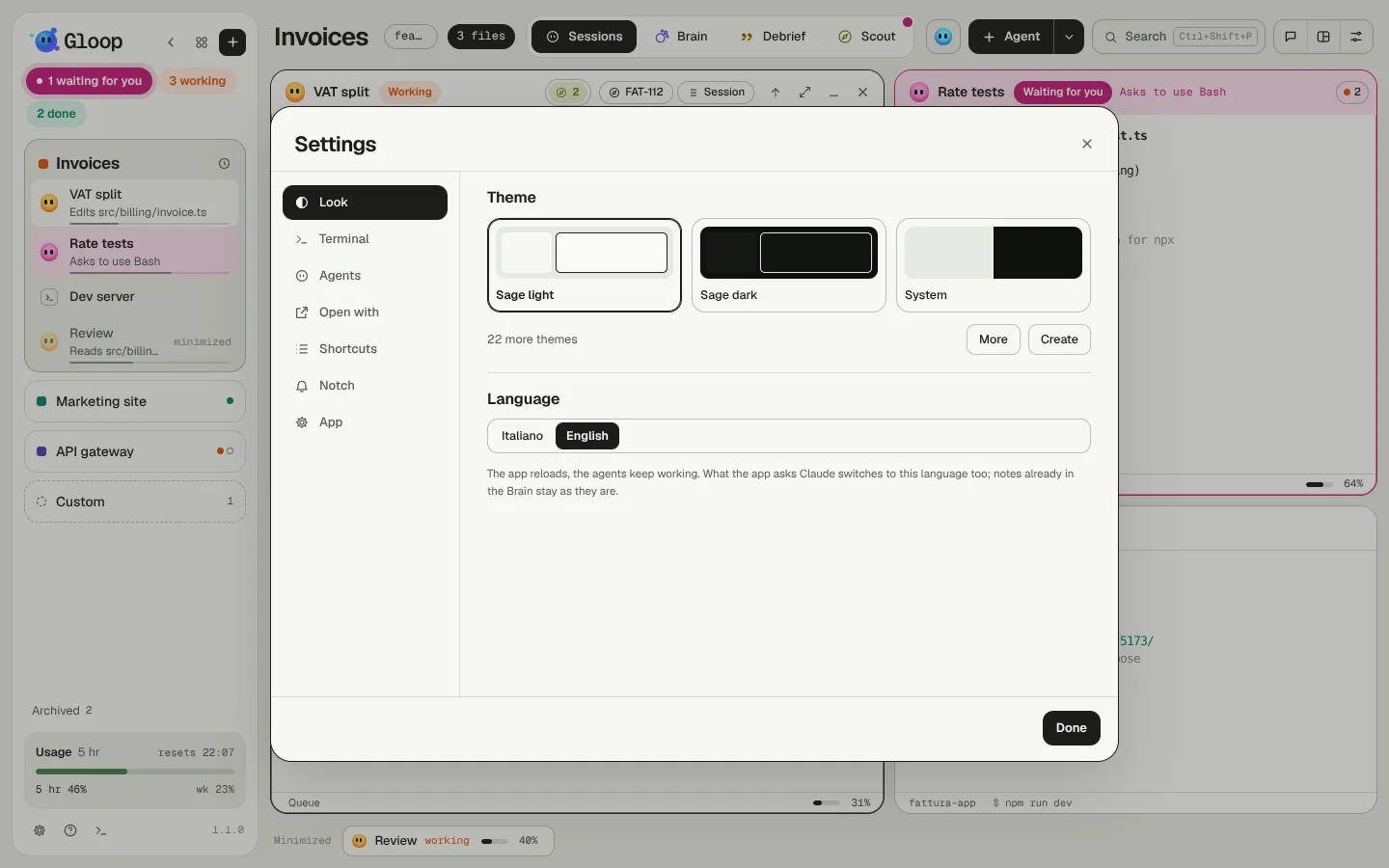
- Theme: Sage light, Sage dark or System, which follows your computer's light and dark. More opens 22 more themes; Create makes one of your own.
- Language: Italian or English. The app reloads, the agents keep working, and what Gloop asks Claude switches to the new language too. Notes already written in the Brain stay as they are.
Terminal
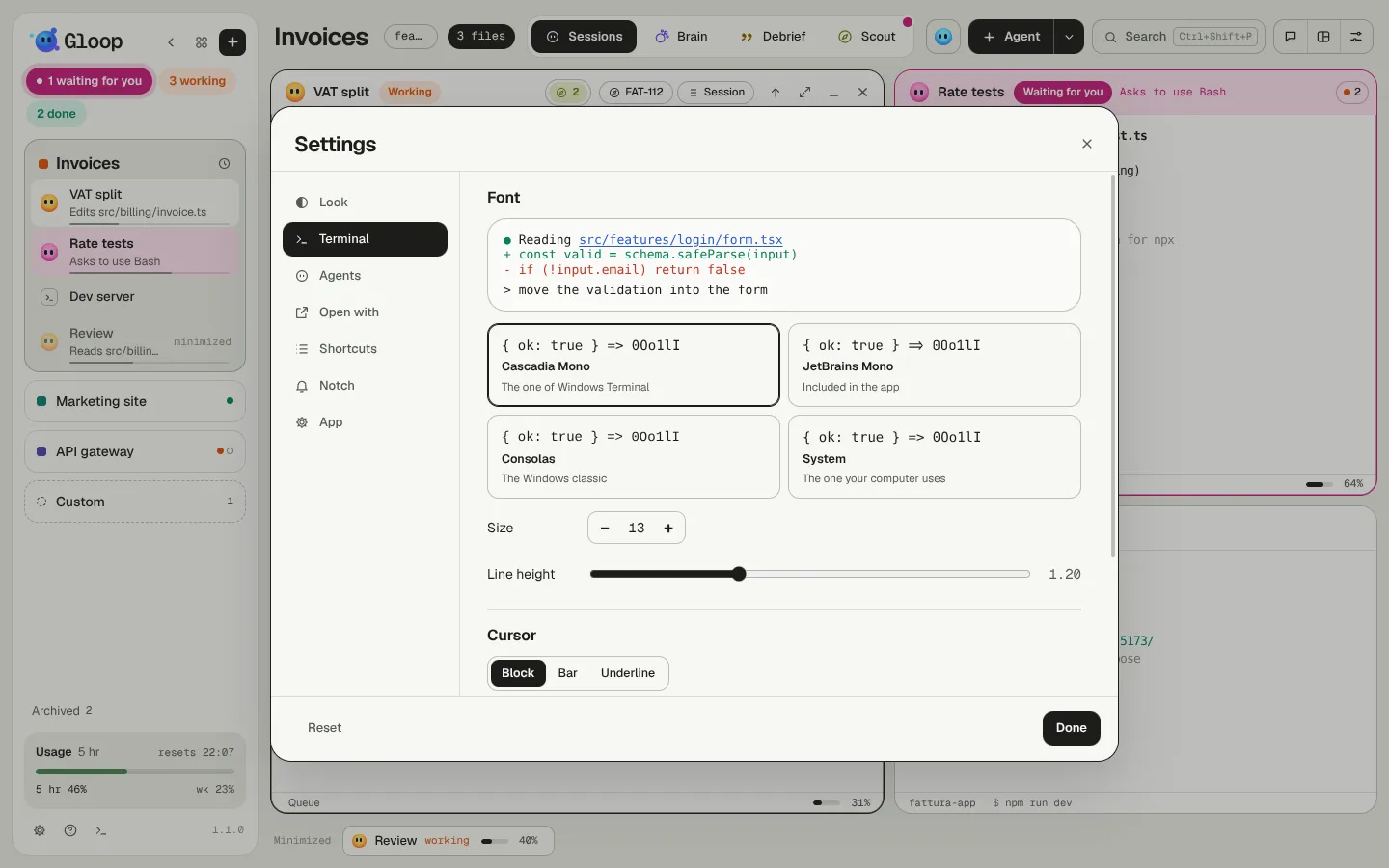
- The terminals' font, with a preview: Cascadia Mono, JetBrains Mono (included in the app), Consolas or the system's.
- Size and line height. From the keyboard: Ctrl+Alt+=, Ctrl+Alt+-, Ctrl+Alt+0.
- Cursor: block, bar or underline, and whether it blinks.
- Use the graphics card (WebGL): sharper text and smooth scrolling even with many agents. If you see odd characters or flicker, turn it off.
Agents
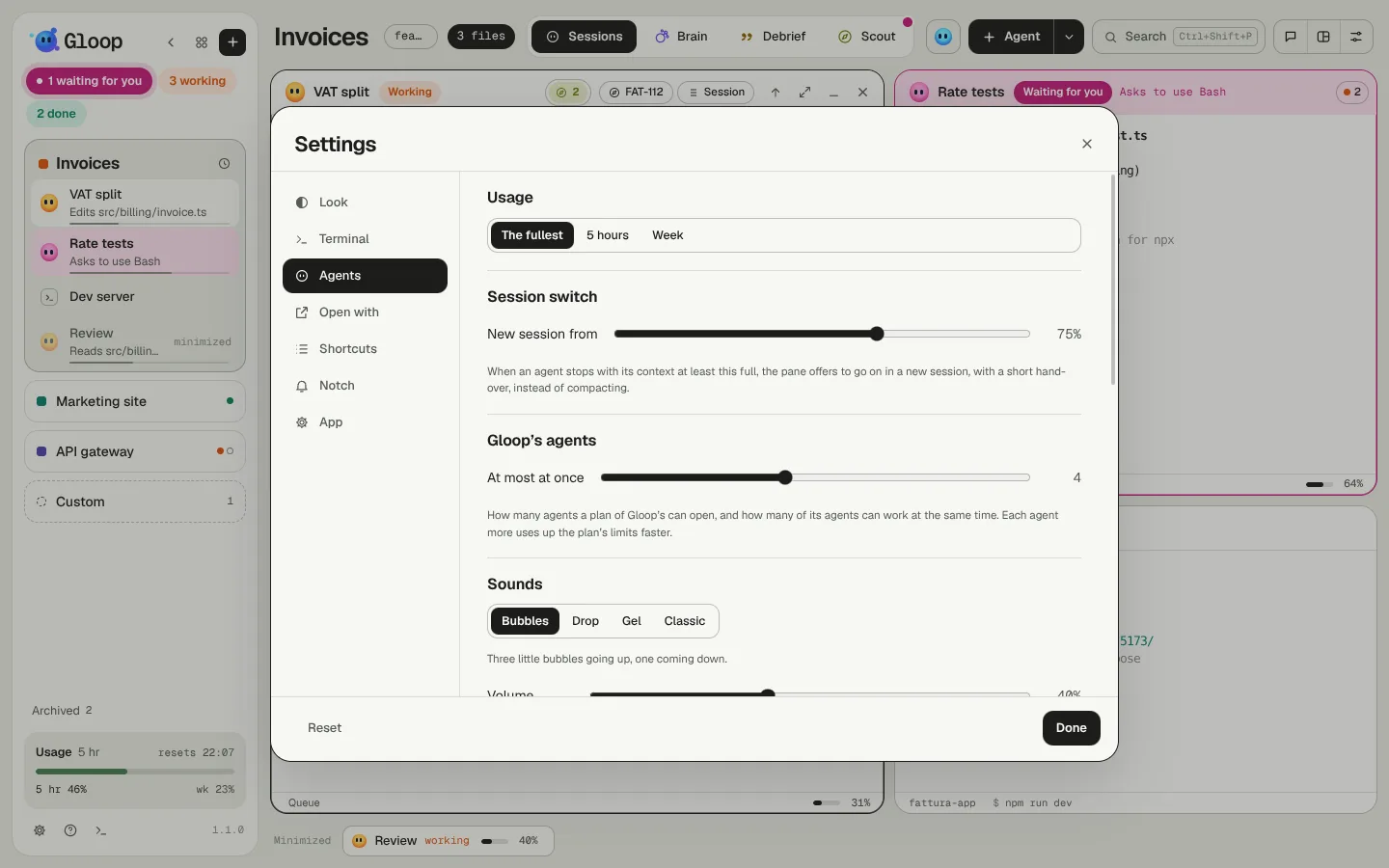
- Usage: what the usage bar at the bottom of the column shows, the fullest of 5 hours and week, or always one of the two.
- Session switch: from how full a context the pane offers to continue in a new session (75% by default). See Agents.
- Gloop's agents: how many agents a coordinator plan can open and run at once (1 to 8, 4 by default).
- Sounds: four sets (Bubbles, Drop, Gel, Classic), the volume, and which events make a sound (when an agent is waiting for you, when it's done). They never sound for the agent you're looking at.
- What Gloop has learned: the table of models by kind of work. See The right model for the task.
Open with
- Open files in: the paths the agents write in the terminal (
src/app.ts:42) become links, and a click opens them in the chosen editor (VS Code, Cursor…) at the right line, or with the system's program. - Open links in: the browser for web addresses. With a right click on a link you can still open it in a window of the app or copy it.
Shortcuts
The app's shortcuts, each with its key: change them with a click and the new combination, or turn them off. See Keyboard shortcuts.
Notch
The notch on or off, where it sits (at the top of the screen, or a widget on the Windows taskbar), whether it moves, and the command bar's combination. See The notch and the widget.
App
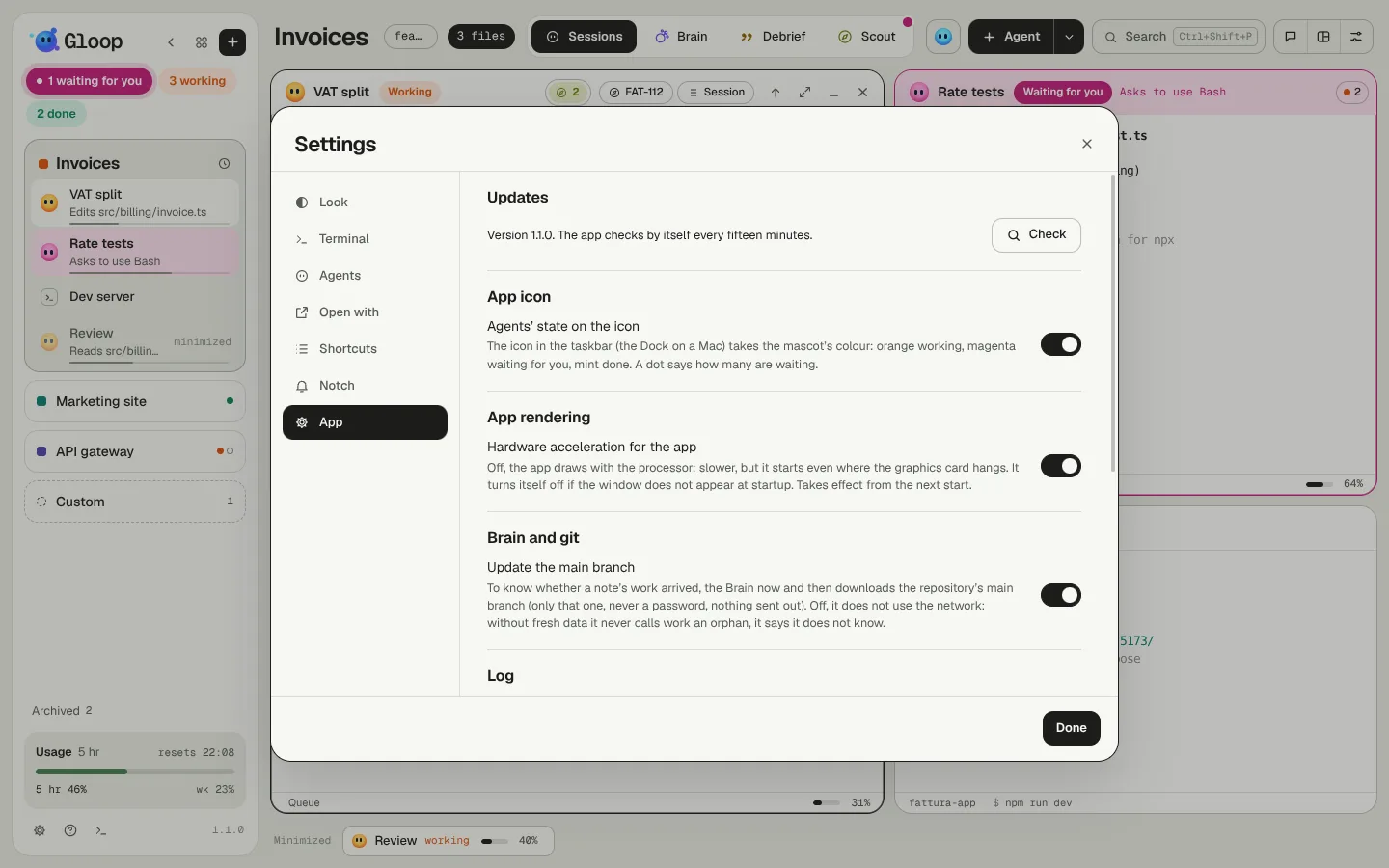
- Updates: the version and Check; when a version is ready, Restart. See Install.
- App icon: the agents' state on the icon in the taskbar (or the Dock): orange, magenta or mint, with the number of those waiting for you.
- App rendering: hardware acceleration. When off, the app draws with the processor: slower, but it starts even where the graphics card hangs. It turns itself off if at start the window doesn't appear. Applies from the next start.
- Brain and git: whether the Brain may download the main branch every now and then to know if a note's work has got in. See The Brain.
- Log: how many days to keep the app's log and how to save it. See Data and privacy.